
Transfer Your DNA to FamilyTreeDNA
Don't let your results sit in one database. Transferring your raw data to FamilyTreeDNA is free, takes a few minutes, and gets you more matches, chromosome level tools, and surname/haplogroup projects, without re-testing. FamilyTreeDNA now handles AncestryDNA, 23andMe, and MyHeritage files the same way, so the steps below are the same regardless of where you tested.
Download your raw DNA file
Where you get this depends on where you originally tested. Pick your source below.
Open your Ancestry data page, scroll to Your DNA tests, and click the > arrow next to your test name.
Open Ancestry Settings ↗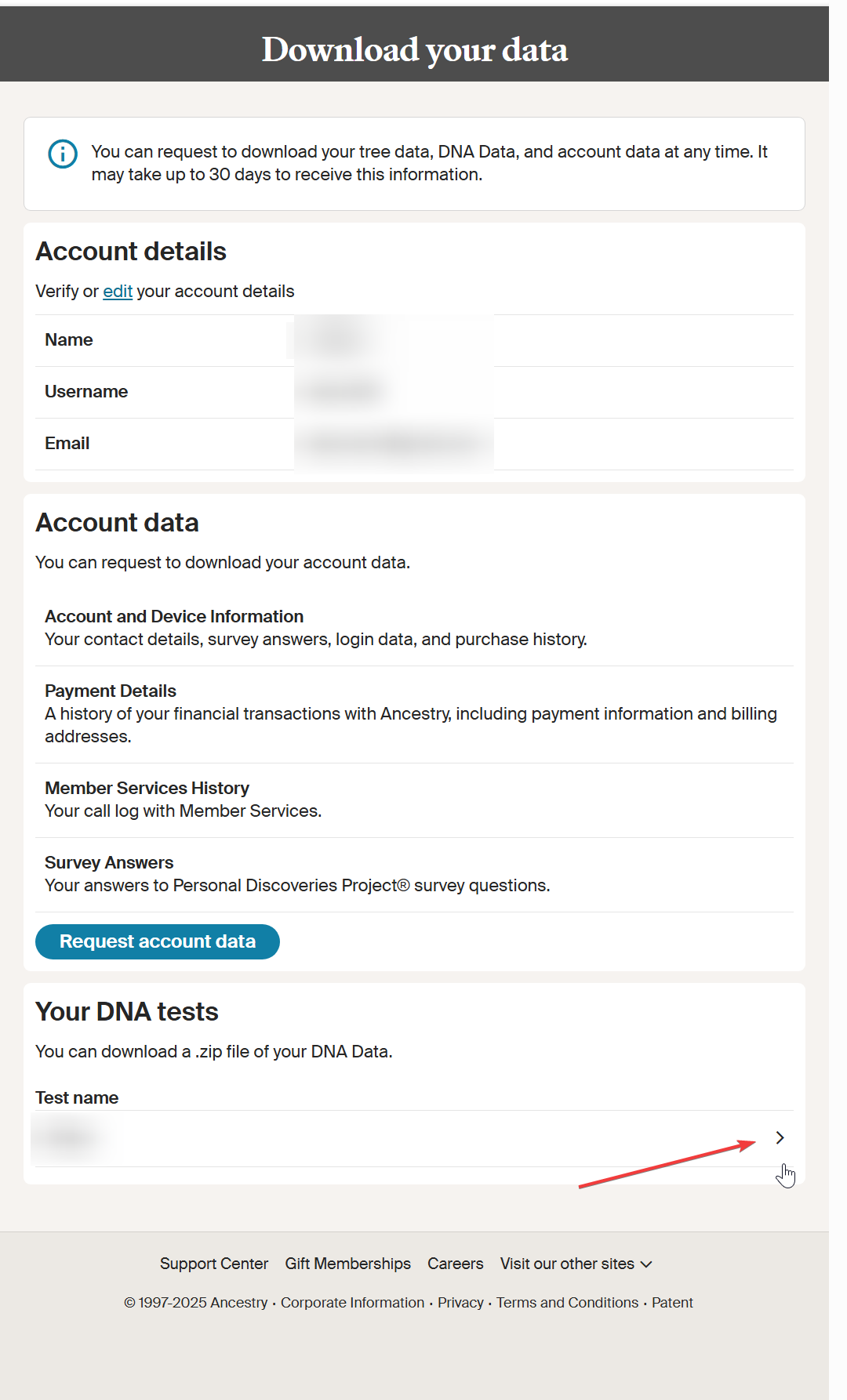
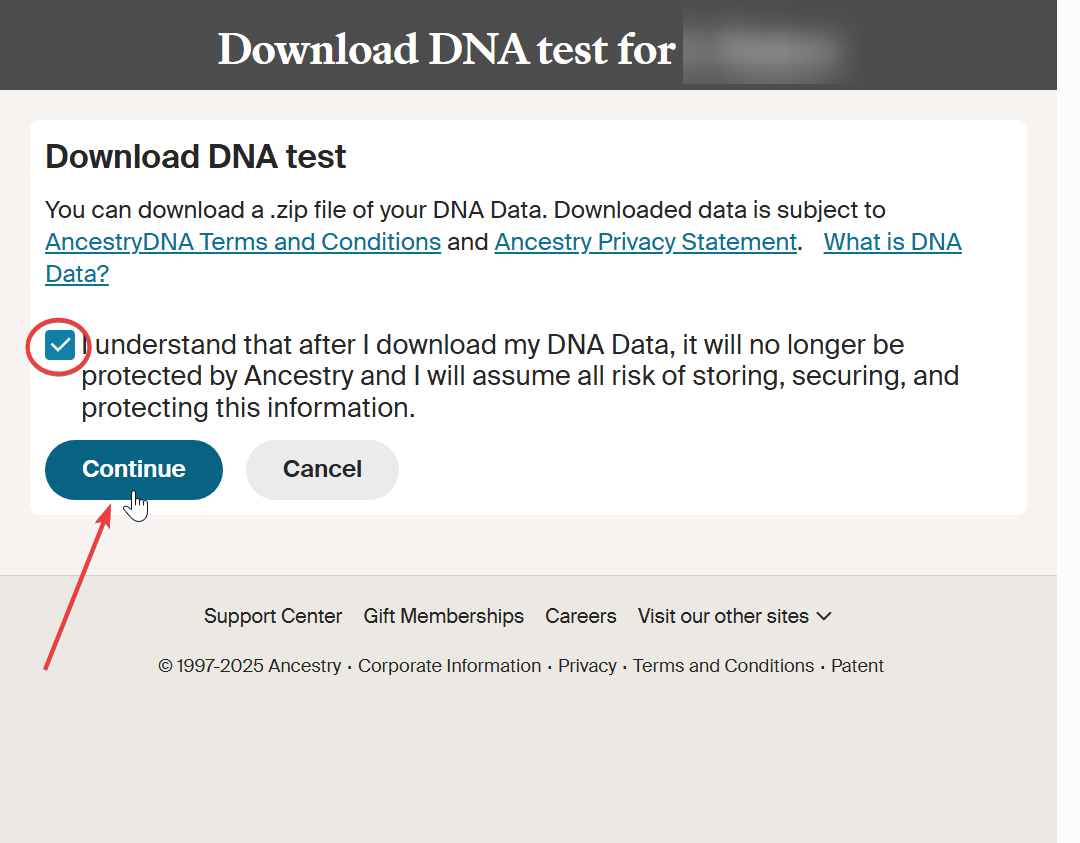
Check the consent box, then click Continue.
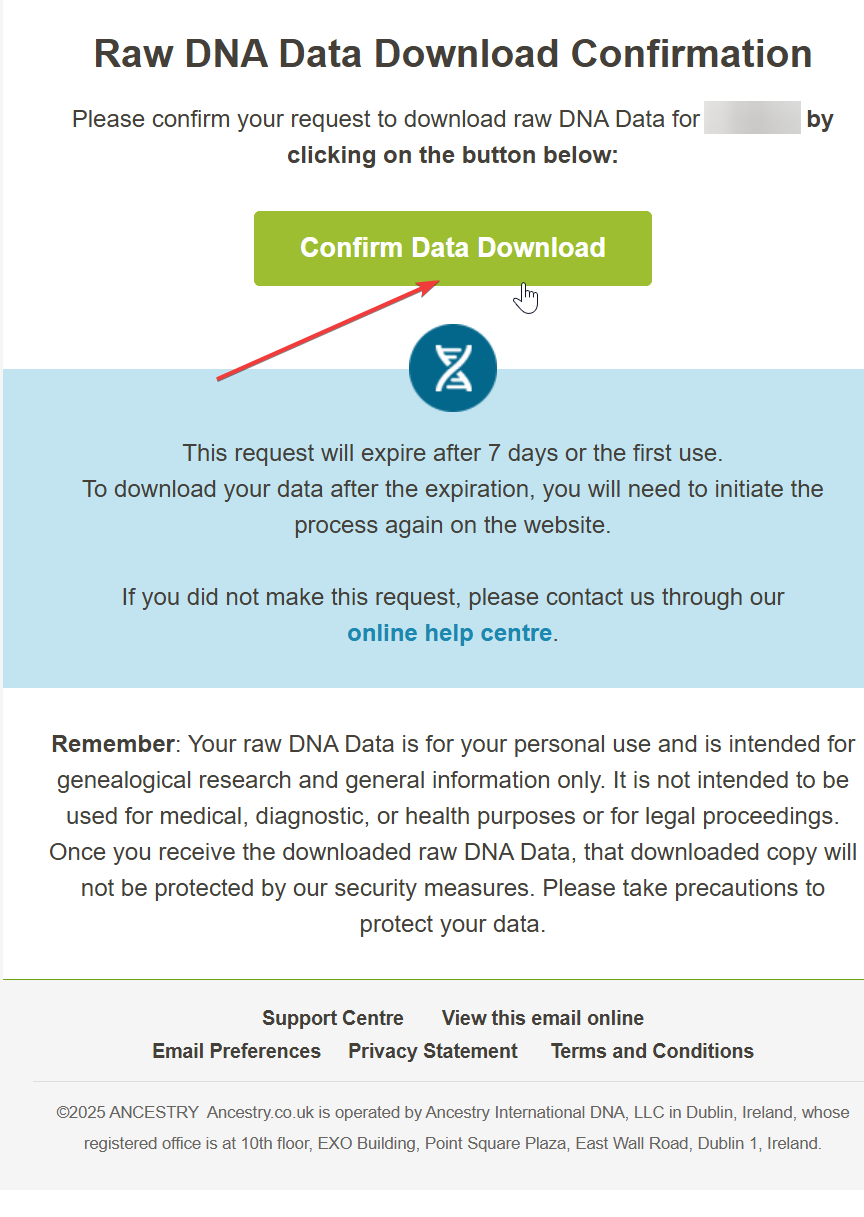
Ancestry emails you within 5 to 10 minutes. Open it and click Confirm Data Download.
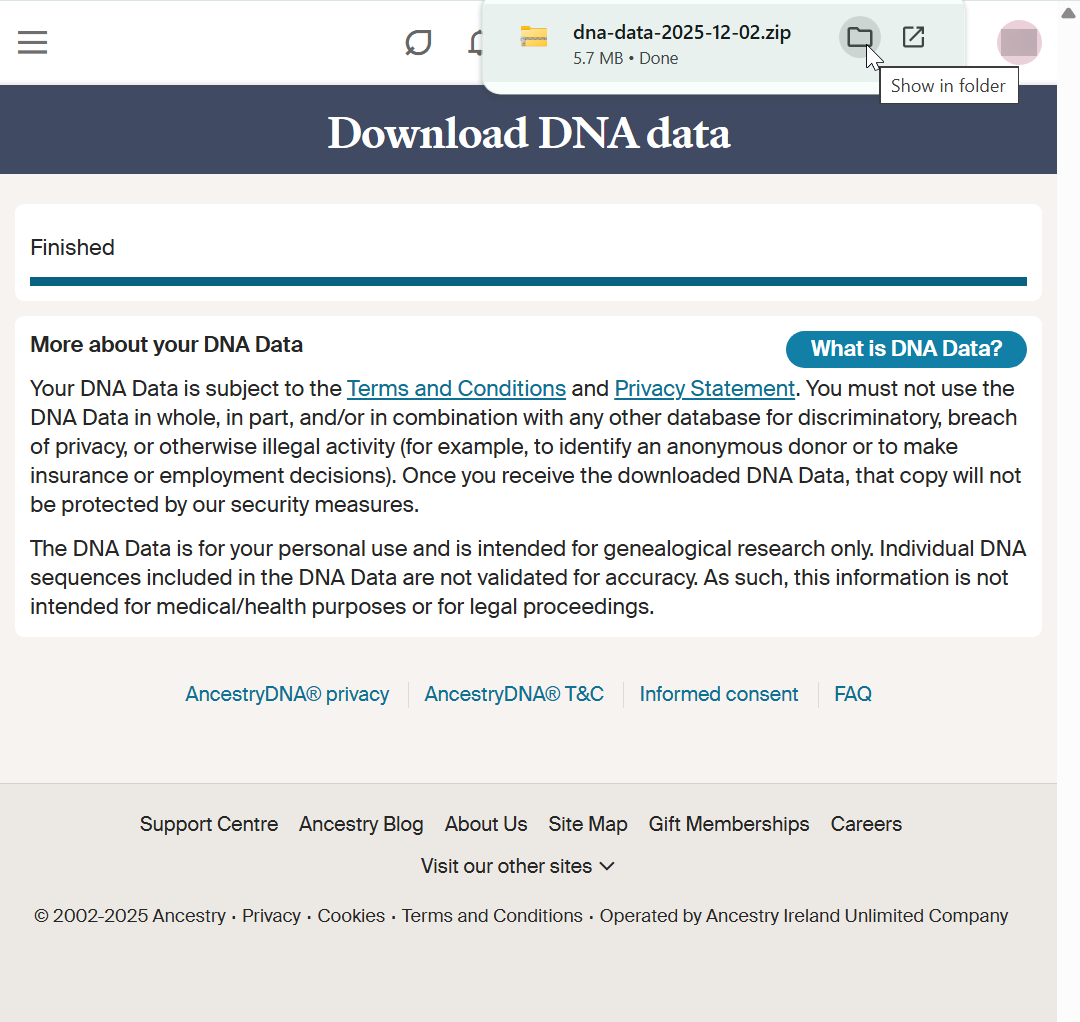
Click Download DNA Data and save the .zip file somewhere you'll find it.
Go to MyHeritage's DNA kit management page, open the menu next to your kit, and choose the raw data download option.
Open MyHeritage DNA Settings ↗Go to your 23andMe account settings and look for the raw data download option under your profile or privacy settings.
Create a free FamilyTreeDNA account
Go to FamilyTreeDNA's transfer page, fill in your details, and click Create Account (or sign in if you already have a kit for this person).
Open FamilyTreeDNA ↗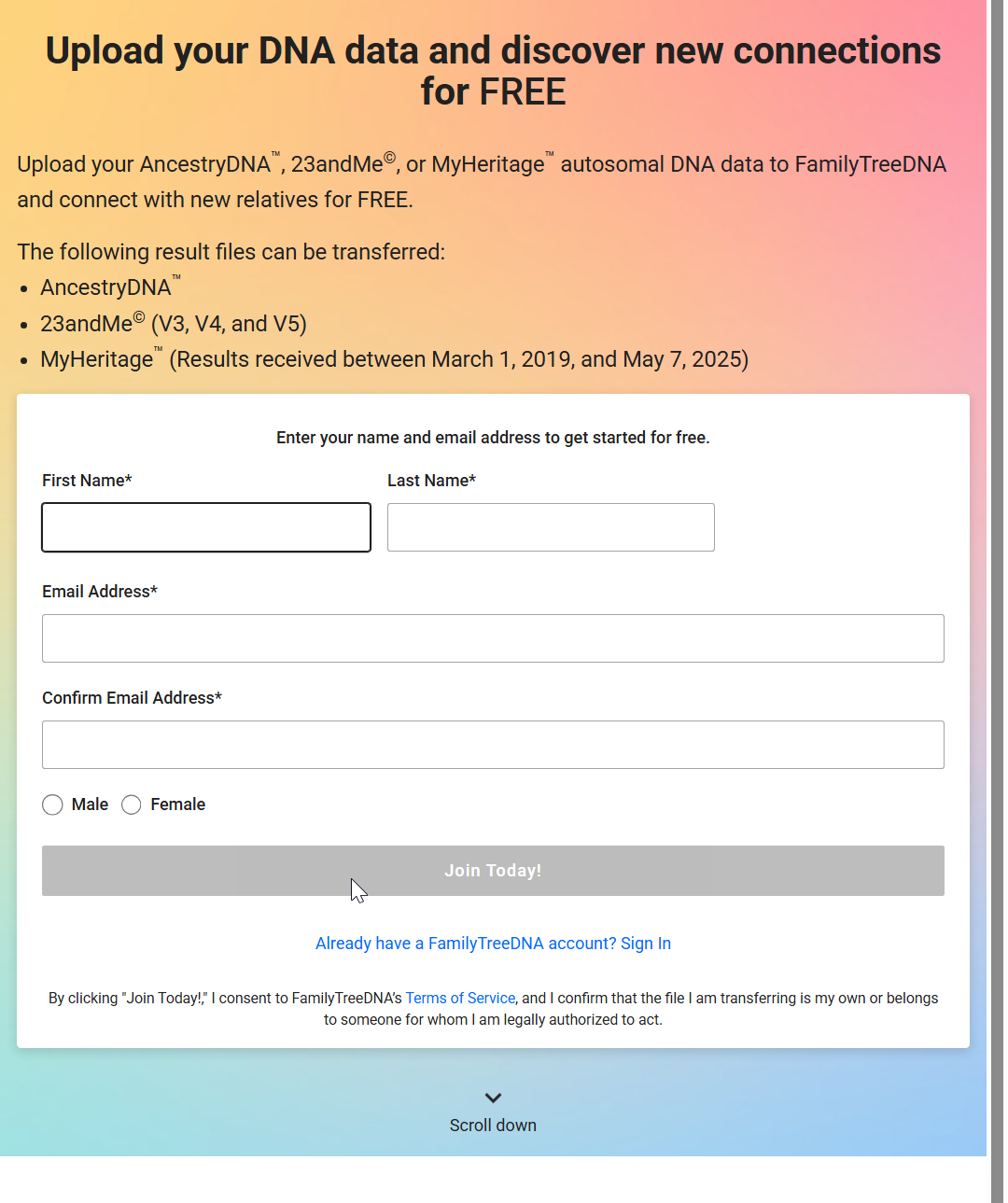
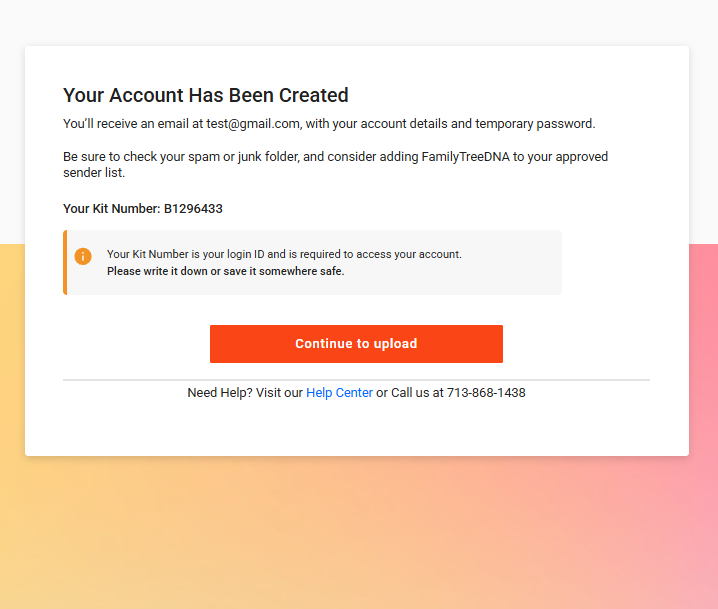
Your account is created
Note your new Kit Number (it's your login ID), then click Continue to upload.
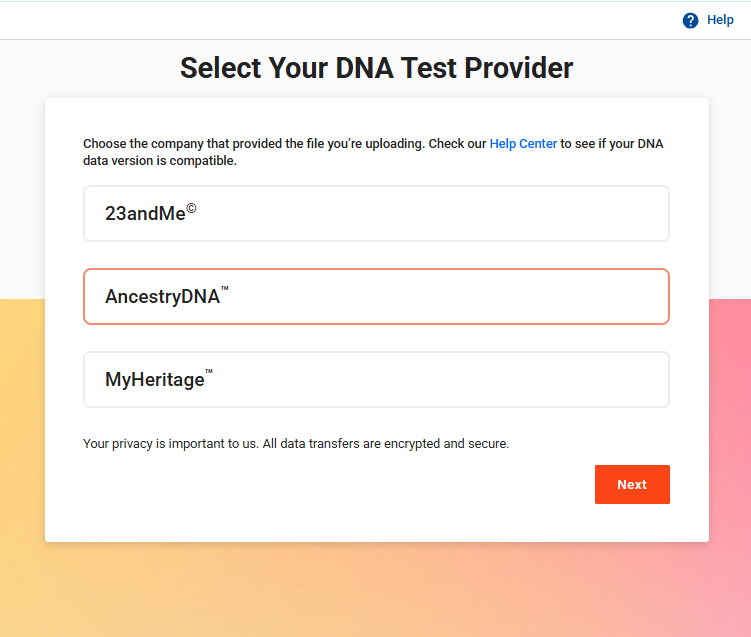
Select your DNA test provider
Choose the company that provided the file you're uploading (AncestryDNA, 23andMe, or MyHeritage all work the same way here), then click Next.
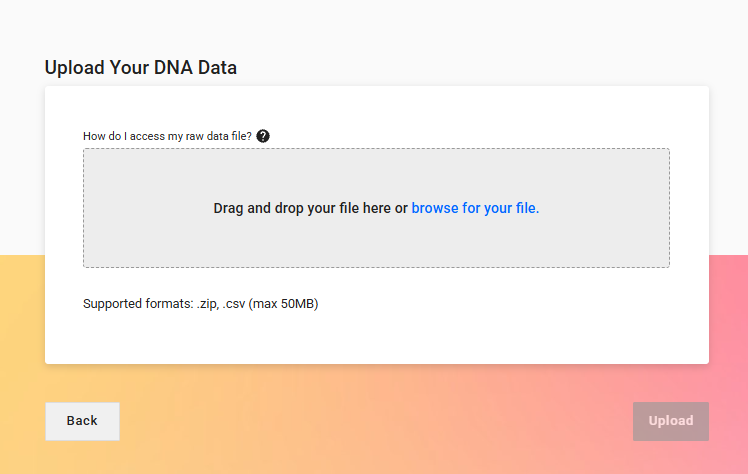
Upload your file
Drag your saved file into the box, or browse for it, then click Upload. FamilyTreeDNA accepts .zip or .csv files up to 50MB.
Once it's submitted
Processing typically takes 24 to 48 hours.
- Wait for the confirmation email from FamilyTreeDNA.
- Log in to view your new matches.
- Explore Group Projects relevant to your surname or origins.
DNA Signpost isn't affiliated with Ancestry, MyHeritage, FamilyTreeDNA, or 23andMe, this is an independent guide based on their current websites, which can change without notice. Read each company's own terms before uploading, and note that once you download raw DNA data, keeping it secure becomes your responsibility.